Documentation
Applying Changes to Your CMS
Once you approve a fix, Visibilitas has to actually get that change into your CMS. When there's no ready-made API for your site, it does this through the Visibilitas Apply browser extension: it drives your own logged-in CMS session to make the edit, live, in a browser tab you can watch the whole time.
Visibilitas never asks for and never stores your CMS password. Every write happens inside the session you're already signed into, and you see what's about to change before it happens, not just after.
You approve a fix
Extension opens a tab
Drives your CMS session
Writes the change
Re-crawl verifies it went live
Connecting your CMS
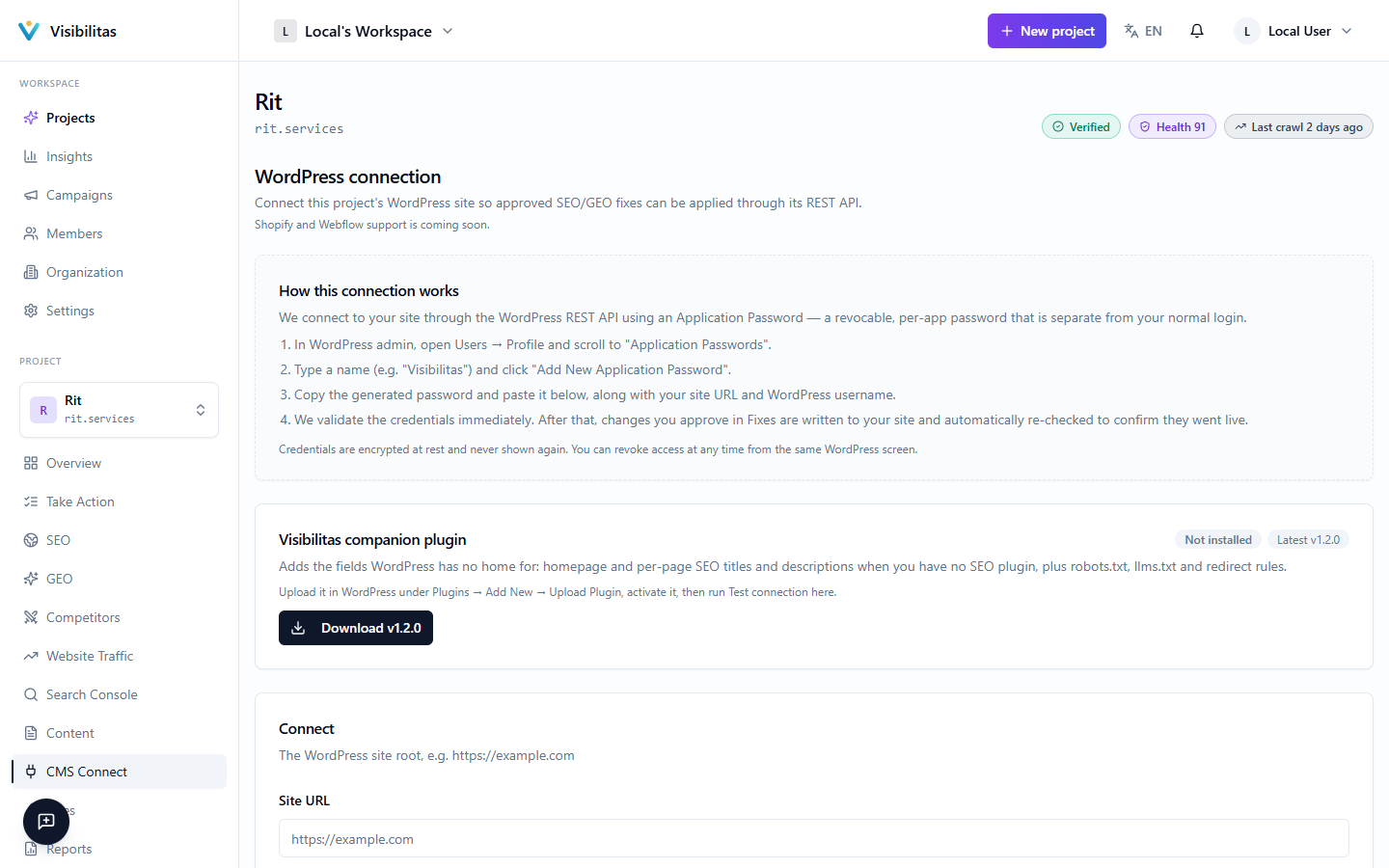
Every project has a Connection tab under Fixes. If your site runs WordPress, you can connect it directly with your site URL, a WordPress username, and an Application Password (not your normal login password). Visibilitas checks it against the WordPress REST API before saving anything, and detects whether Yoast or RankMath is installed.
For any other CMS, or if you'd rather not hand over an Application Password, the same page has a Browser Apply section. A toggle switches on routing approved changes through the browser extension instead of an API; changes only travel this way while the toggle is on.
Pairing is what links the extension to this specific project. Clicking Pair a device generates a one-time, eight-character pairing code that's valid for ten minutes only; you enter it once inside the installed extension, and it's spent after that. Paired devices are listed below with when they were last seen, and you can revoke any of them at any time to cut off their access.
The Visibilitas Apply browser extension
Visibilitas Apply is a Chrome extension. Once installed, it adds a side panel you open next to whatever tab you're working in, and it needs to know which project it belongs to, which is what the pairing code from Fixes → Connection is for. It never signs in on your behalf and holds no login of its own for your site.
When you approve a fix and press Apply, the extension opens its own dedicated tab rather than taking over the one you're already reading, and drives it through your own signed-in CMS admin, finding the right page, opening the editor, and writing the new value while you watch it happen in the side panel. It narrates what it's about to change before it changes it, briefly highlights the field it's about to write, and you can type to it mid-run, including telling it to stop, if something looks wrong.
The security model follows from what the extension deliberately does not do. It does not request Chrome's debugger permission (the same access used to script a browser at the DevTools level) because writing form fields through the ordinary page is enough for every fix type it ships, and it keeps the extension out of the riskiest Chrome Web Store review category. The actual decisions are made by a model running on Visibilitas's servers; the extension only carries out instructions that were already approved, so a compromised page can at most make its own fields harder to find. If the assistant ever needs to reach a site outside your project, such as an admin on a different domain or a login redirect, it has to ask, and the panel shows you the exact address with Allow/No buttons; nothing is inferred from typed text.
Above all: Visibilitas never sees or stores your CMS password. Every write happens inside the browser session you're already logged into, and if that session gets signed out, the assistant stops and asks you to sign back in; it will never type into a password field.
Tracking applied changes in Actions
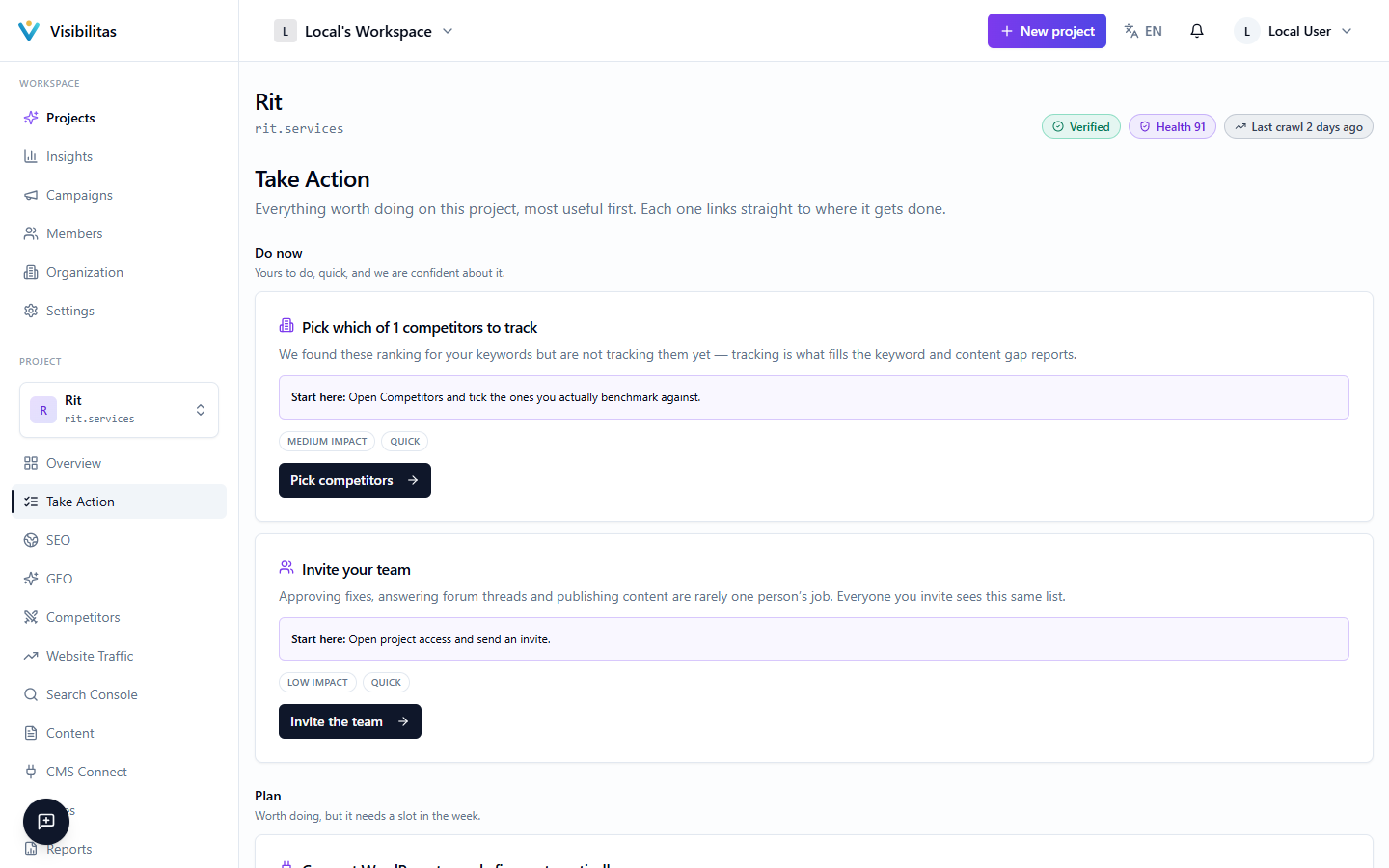
The Take Action board, on each project's Overview, is the one prioritized list of everything worth doing next on a site: the SEO problems the latest check found, fixes we wrote that wait for your review, steps from the GEO roadmap, searches one push from the top 3, forum threads, unfinished drafts and the setup still open. It is laid out as three lanes: Do now (yours, quick, and we are sure), Plan (worth doing, but it needs a slot in the week) and Needs someone else (it waits on a third party, such as your web developer or a forum). Each action is one line with its impact, its effort and a button that takes you straight to where the work happens; the bar and chips above the lanes show how the work splits across areas and show one area at a time.
Click an action to open its first step and why it matters, one at a time. An SEO problem type says how many pages it is on and, for the titles and descriptions we write, how many can go live in one click; its button says what waits, such as Review 8. A GEO step names its roadmap step, so this list and the roadmap read the same number, and the steps keep the roadmap’s order. Mark as done ticks an action off by hand, and a GEO step ticked here is done on the roadmap too. An SEO problem has no Mark as done: it leaves the list once the next check no longer finds it.
Under the lanes, Done, week by week draws one bar per week for the last 12 weeks, coloured by the same areas. Each line of the board counts once, in the week it was finished, however that happened: a check no longer finds a problem, a search reaches the top 3, the live check passes a GEO step, someone marks an action done, a forum answer is posted, an article is finished or a setup step is completed. The pages whose fix a check confirmed live are counted one by one in a sentence below the bars, because they are another unit. Show as a table gives every week’s numbers, and See what was done lists the lines, each saying whether a check confirmed it or someone marked it done, with Undo for anything ticked off.
For the detail behind one specific change (which field it wrote, what value was there before, and whether a post-deploy check confirmed it actually took), open it on the Fixes page, where each row carries its own status through the apply.