
Documentation
Settings: your account, team, plan and connections
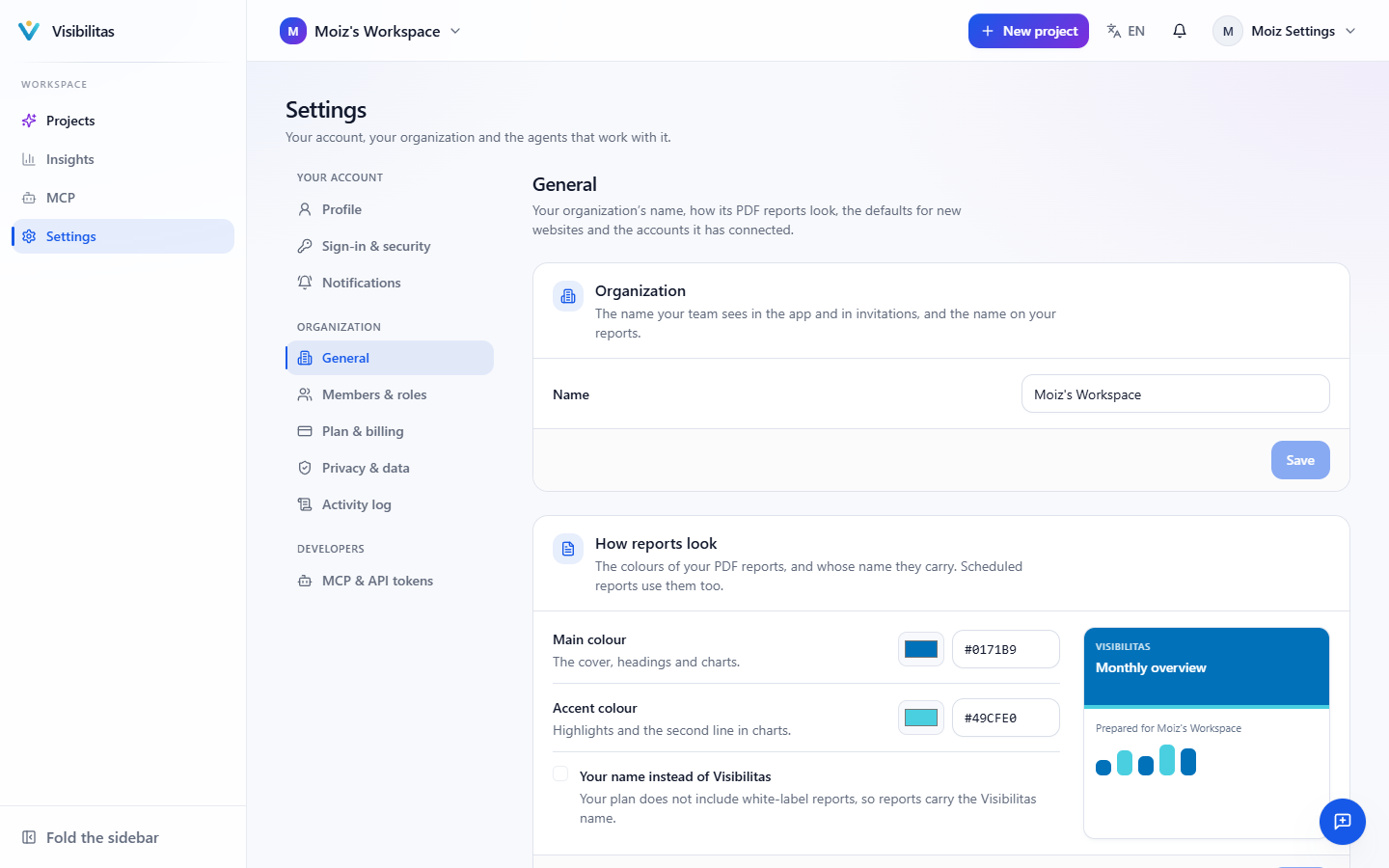
Everything that is not about one website lives under Settings in the sidebar, in three groups. Your account is yours alone: your profile and language, how you sign in (password, two-step sign-in and the browsers you are signed in on) and which notifications reach you, and where. Organization applies to everyone in it: its name, how its PDF reports look and the accounts it has connected (General), its people (Members & roles), its plan (Plan & billing), its data processing agreement and data (Privacy & data) and what happened in it (Activity log). Developers holds the tokens agents use to reach the organization over MCP, which the sidebar’s MCP opens too.
The menu shows the pages you can use: a member sees their own account and the plan, an admin sees everything. Settings that belong to one website (its access, its AI usage, its hosted copy) stay in that website’s own Settings.
General and connected accounts
General holds the organization’s name, how reports look (the main and accent colours of your PDF reports and, where your plan includes white-label reports, your organization’s name in place of Visibilitas) and the defaults for new websites (country and language). Each part has its own Save.
Under Connected accounts you see every outside account the organization has connected, and can disconnect it. Google Search Console, Google Analytics and Bing Webmaster Tools are connected from a website’s Performance page, where you also see what they report. Slack (a webhook URL, so alerts can be posted to a channel) and Sistrix (an API key, for backlinks) are connected right here. Only admins, and members whose role lets them manage connected accounts, can change these.
Plan & billing
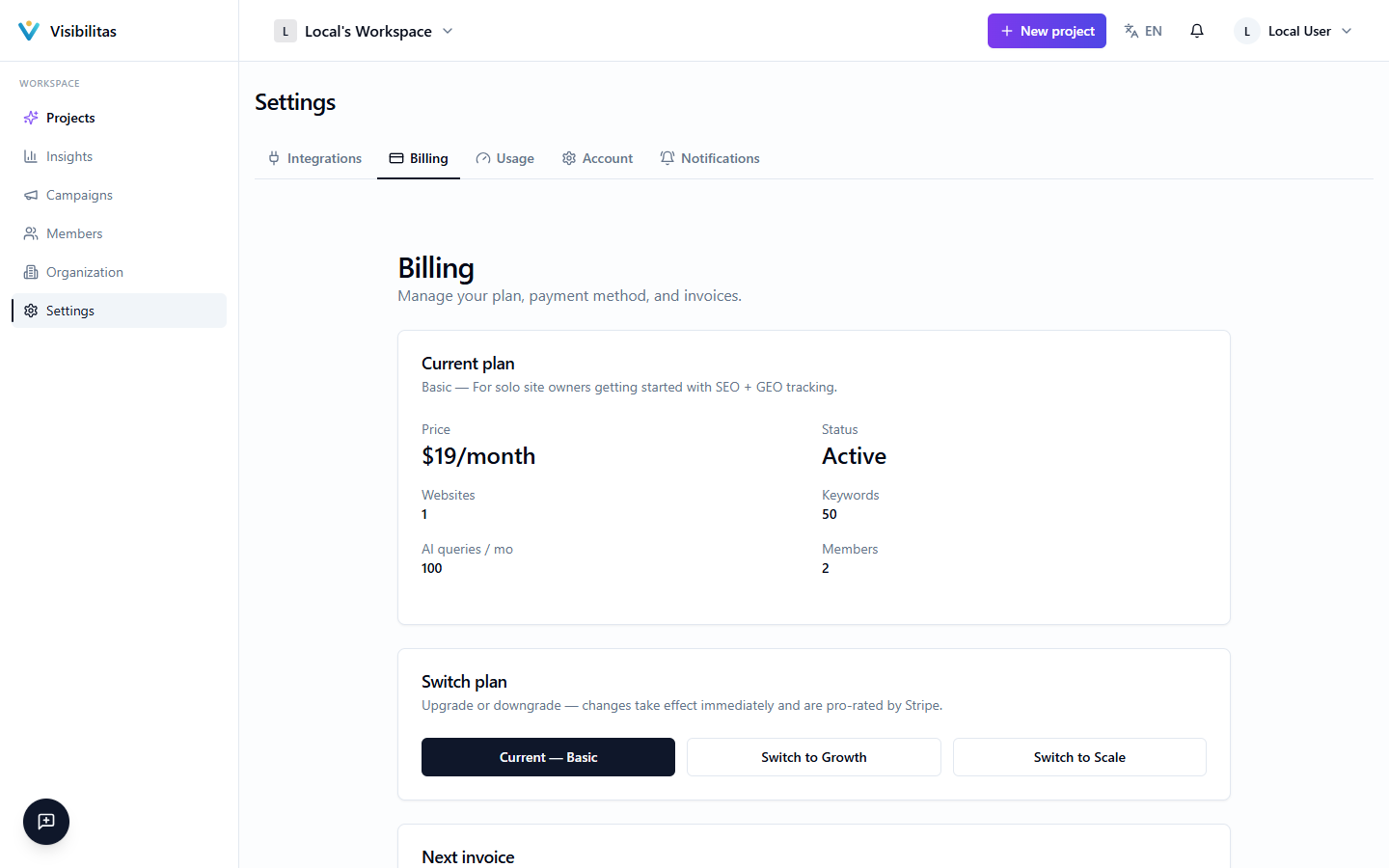
Plan & billing shows the current billing period (it starts on the day of the month your organization was created), your plan and what this period has used of it: websites, tracked keywords, members, AI answer checks, SEO data requests, articles and the AI allowance, each as a bar that turns amber near its limit. Below are the plans you can change to, which open Stripe Checkout, and the Stripe customer portal for the payment method and cancelling. Only admins see these buttons; everyone else sees the plan and what it has used.
AI use by website shows each website’s part of this period’s AI use. History lists every billing period (or calendar month), newest first, with what was invoiced and a link to the invoice; open a period to see what it used of each allowance.
Members & roles
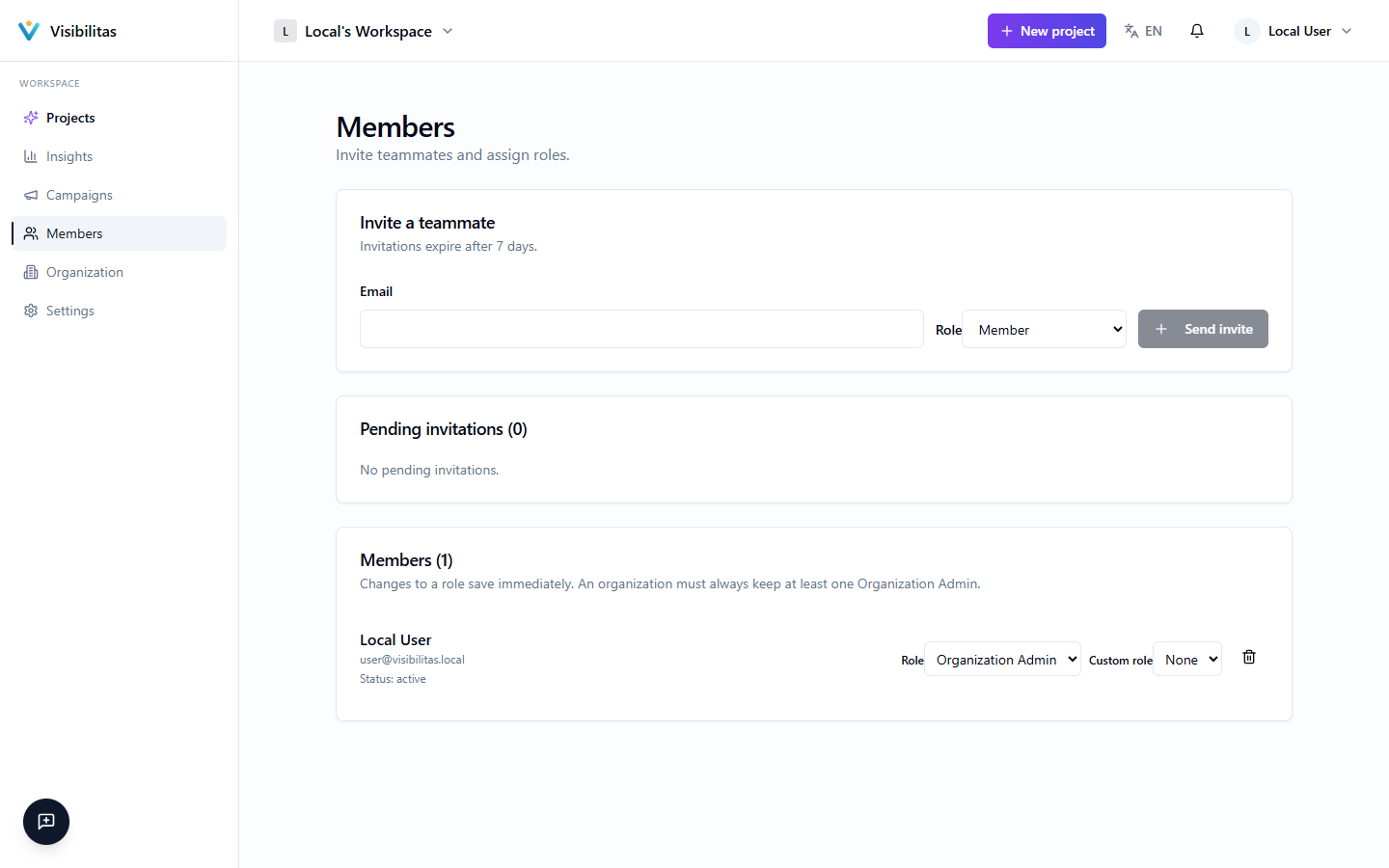
Members & roles lists everyone in the organization with their role, the websites they can open and any extra permissions. Invite someone opens the invitation: an email address, the role (Member or Organization Admin), which websites a member can open (all of them, or only the ones you pick, each optionally read only) and, if you like, a custom role. Pending invitations show until when their link works, and can be revoked.
Everyone is a Member or an Admin. A custom role adds permissions to a Member, such as approving fixes; it never takes any away. Roles lists what Members and Admins can do and every custom role with the permissions it adds and how many members hold it. You cannot change your own role, and an organization always keeps at least one admin; when something is refused, the dialog says why.
Project-level settings & access
Every project also has its own Settings area, separate from the organization-wide pages above. General settings cover the project's name, primary domain, target country and language (or multiple markets, if configured), industry, a list of target keywords, and any excluded domains the crawler should never visit. From the same page you can archive a project (pausing its scheduled crawls and jobs without deleting it) or restore an archived one, and organization members with the right permission can permanently delete a project.
Access controls which organization members can work on this specific project. An Org Admin (or anyone with Manage members) can add any existing member as a project collaborator, optionally marking them read-only so they can view the project without making changes, and can remove a collaborator's access at any time. This is separate from your organization-wide role: it lets you scope who touches a particular client site without changing anyone's overall permissions.
AI usage gives a project-scoped view into how much of your AI budget that project is consuming: total calls, tokens in/out, and cost, broken down by feature and shown as a recent activity log, filterable over the last 7, 30, or 90 days. It's a useful place to check if a project is approaching your plan's AI query limits before they affect other work.