
Documentation
Content: hub, wizard & opportunities
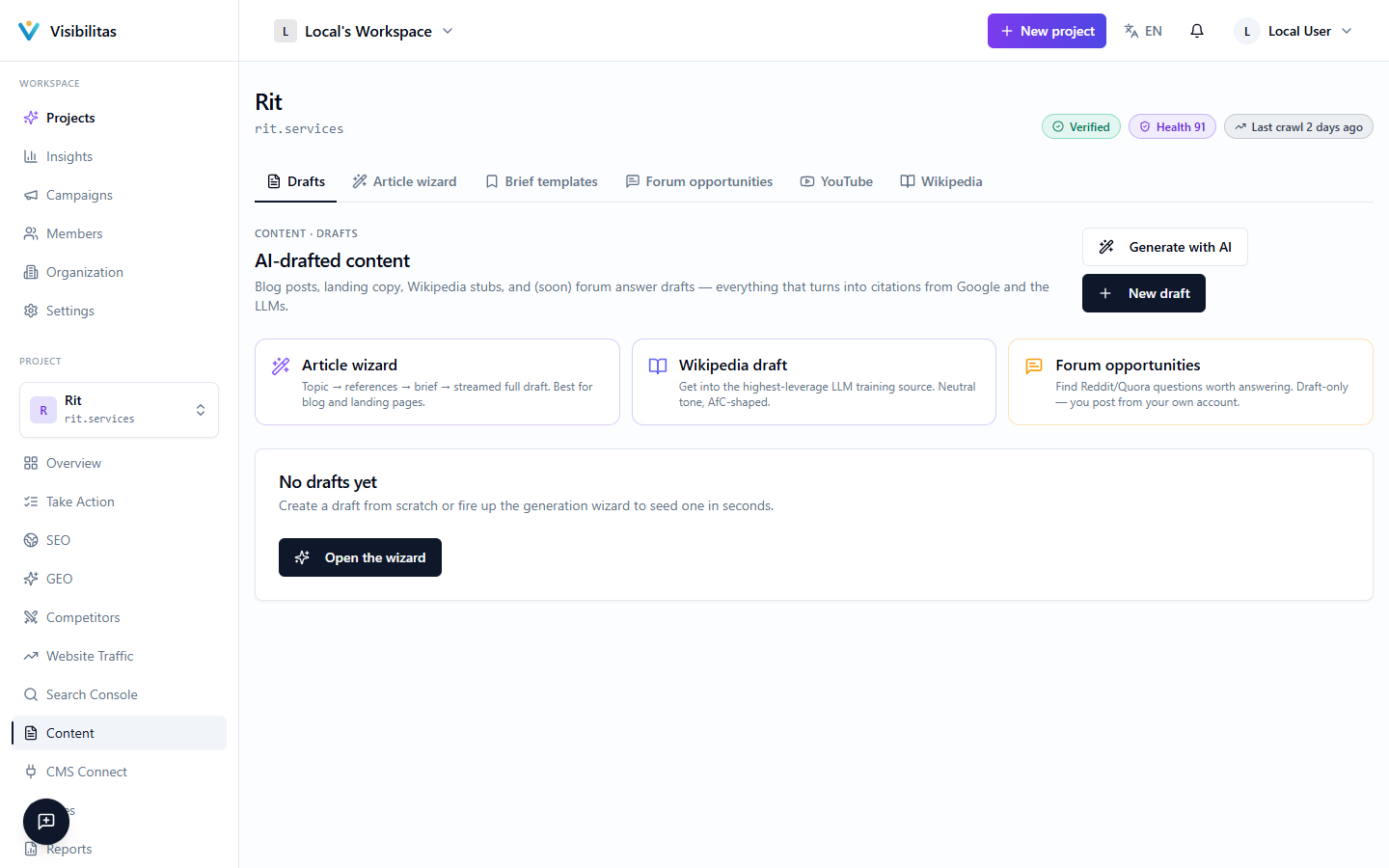
The Content area of a project is where you turn research into finished text: articles written with the Content Wizard, replies drafted for forums, video ideas for YouTube, and a starter article for Wikipedia. Everything you generate lands as a draft that you can review, score, and edit before it ever goes live anywhere.
Nothing here posts or publishes on your behalf automatically. Drafts are saved to your project, forum and video suggestions are held for your review, and even the Wikipedia stub is handed to you to submit yourself through Wikipedia's own process. You stay in control of what actually gets published.
Topic & references
Outline
Generate section by section
Draft saved to your project
Articles, and the ways to a new one
The Articles tab is the project's home for everything written for the website. It opens with the three ways to a new article. Write one now with AI opens Write with AI, which writes a full draft from a topic or a keyword. Get articles on a schedule opens the Schedule tab: you choose the days once and line up topics, and on each of those days the AI writes the next topic as a draft. Write it yourself opens a blank article in the editor. Each card says where it stands: how many AI articles are left this week, and when your schedule writes next.
Below them, Your articles lists every draft with its type, length and last edit, its status (draft, review or final) and whether it has been sent to your website. Search, filter by type or pick a status tab to find one, and click a row to open it in the editor.
Ideas for your next article lists the keywords you track and the topics your tracked competitors cover. Each idea has Write now, which opens Write with AI with the idea as the topic, and Add to schedule, which lines it up for your schedule. On the Schedule tab every lined-up topic also has Write now, so a topic need not wait for its day.
Nothing a schedule writes is published on its own: every article arrives as a draft, here or in WordPress. Writing and deleting articles require the AI use permission on your account; without it you can still browse and open existing articles.
The content wizard
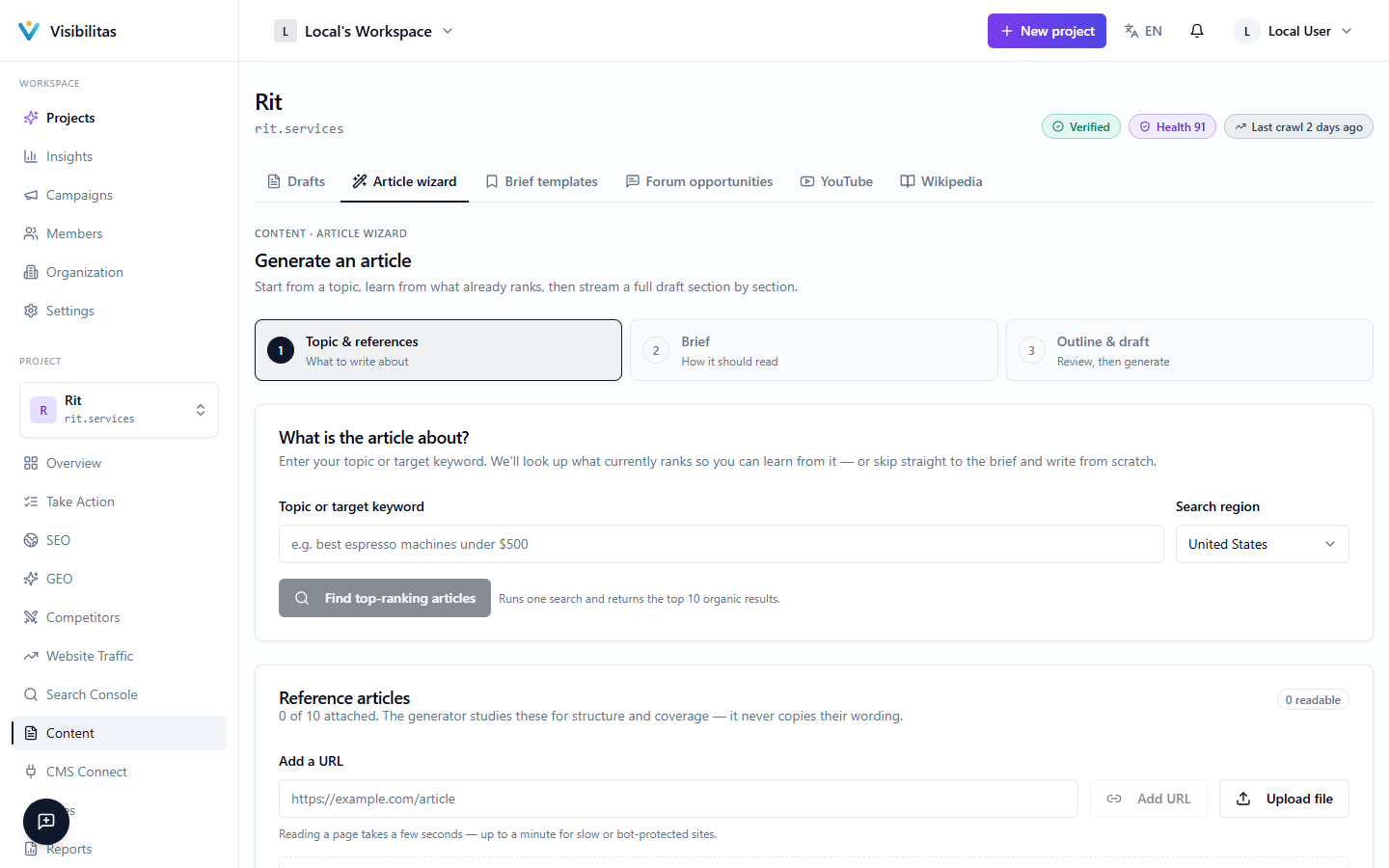
The Content Wizard walks you through generating a full article in three steps. Step one is topic and references: you describe what the article should cover and can strengthen it with reference material pulled from search results (SERP), pasted URLs, or your own uploaded files; the wizard uses these to ground the generated content and avoid duplicating what competitors already say.
Step two is the brief: article type (blog, product, landing, or meta), target audience, tone, target word count, language and country, and anything the article must include or avoid. If you've saved a brief template before, you can load it here instead of filling every field again. See the last section below for how templates work.
Step three shows the outline the model proposed and lets you generate the article section by section, watching it stream in. If a section comes back short or a stream drops partway through, you can regenerate just that section rather than starting over. Once you're happy with the result, saving it creates a new draft in the Content hub, complete with a generated SEO title and meta description you can still edit afterward.
The wizard can also be opened pre-filled: a topic can arrive from another page (like a competitor's content gap), and a brief can be reused from an existing draft or a saved template via the page's URL parameters, so you won't need to retype the audience, voice, or constraints each time.
Forum, YouTube & Wikipedia opportunities
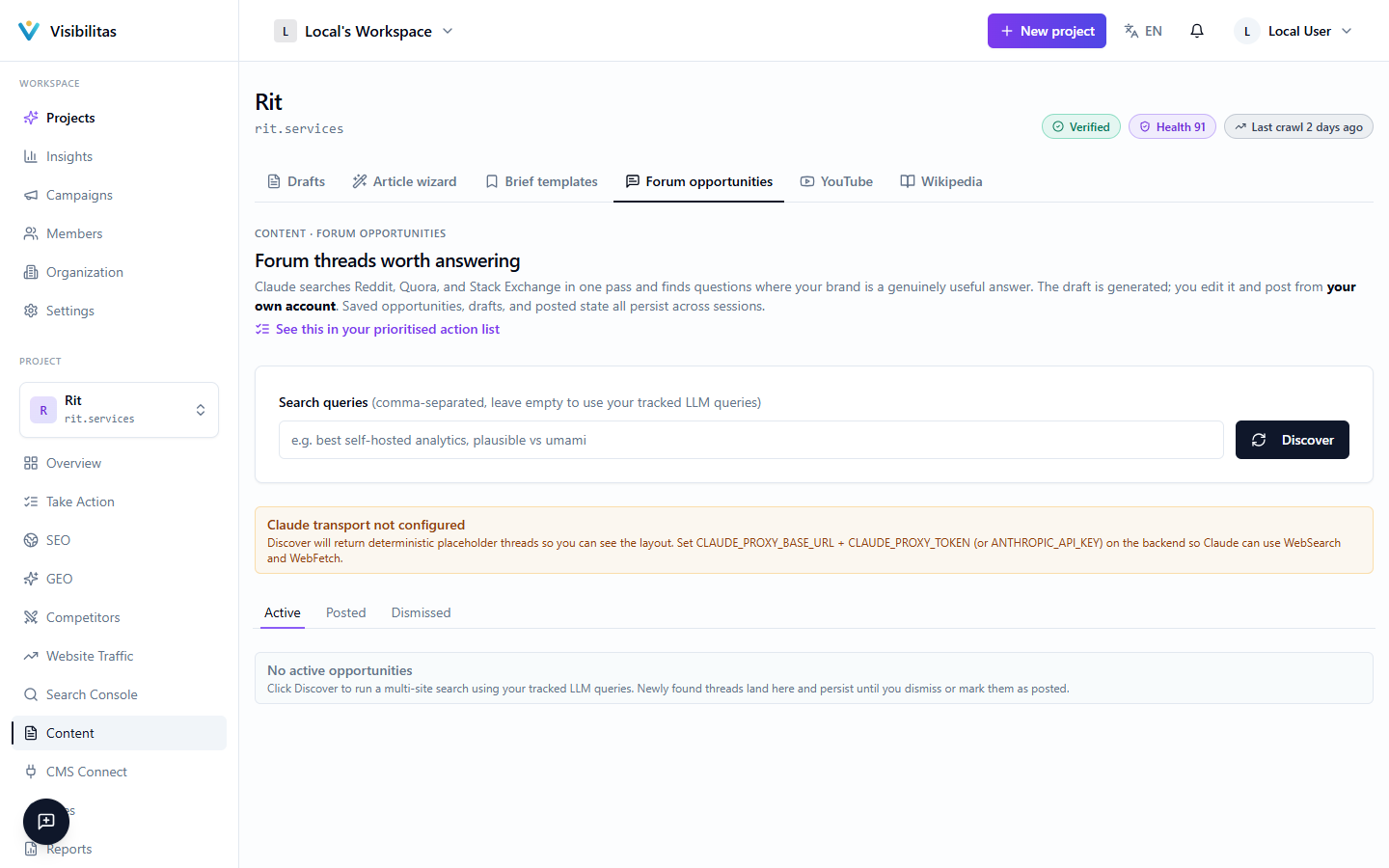
These three tools surface places outside your own site where a mention of your brand helps with GEO (getting cited inside AI answers) or with driving direct traffic. All discovery runs through Claude's web search, so Reddit, Quora, Stack Exchange, and other Q&A sites are covered by the same Forum tab, while YouTube has its own tab for video content.
On the Forum page, click Discover to search for threads relevant to your project (you can narrow the search with your own query terms). Each result shows a relevance match percentage, the matched search terms, and which platform it came from. Expanding a thread lets you generate an AI-drafted reply, copy it, open the original thread, mark it posted (optionally with the URL of your reply), dismiss it, or leave notes for your team. A drafted reply always comes with a warning to review it before posting, because nothing is posted automatically, and drafting itself requires the AI use permission.
The YouTube page works the same way for videos worth engaging with or referencing, and additionally offers a video ideas generator that proposes ranked concepts (title, opening hook, format, target audience, and why it fits your niche) based on your tracked queries and the videos already discovered.
The Wikipedia page is different: rather than discovering existing content, it generates a neutral, notability-shaped draft article about your brand and walks you through Wikipedia's real submission process step by step: checking notability, creating an account, disclosing paid contributions under WP:PAID, and using Wikipedia's own Article Wizard. You copy the generated text and submit it yourself; nothing is posted to Wikipedia from inside Visibilitas.
From draft to published: templates & the draft editor
If you find yourself writing similar briefs repeatedly, save one as a brief template from the Brief Templates page. A template captures the same fields as the wizard's brief step (audience, tone, format, word count, and more) and can be scoped to just this project or marked organization-wide so every project can reuse it. Starting a new article from a template pre-fills the wizard's brief step so you only need to add the topic.
Every draft, whether created by the wizard or by hand, opens in the draft editor, a rich-text editor supporting headings, bold/italic, lists, links, images, and tables. From there you can run an AI content analysis (an overall score plus readability, depth, originality, intent-match and E-E-A-T sub-scores, with specific issues and suggested sentence rewrites you can apply with one click), check keyword density against a target keyword with suggested insertion points, run a plagiarism/similarity check, or compare how different AI models would write the same brief.
A sidebar tracks word count, reading time, headings, and links, and lets you edit the SEO title, meta description, and target keyword that were generated with the article. Marking a draft final requires a passing plagiarism check first. The button explains why it's disabled if that check hasn't been run or hasn't passed yet. Publishing the finished content to your actual site is a separate step, handled by the fix-and-apply workflow described elsewhere in this guide.