
Documentation
Keywords & Rankings
Visibilitas checks how your pages rank for the keywords you care about and keeps those positions up to date automatically. The Tracked Keywords list is where you add and monitor keywords per market and device; the Keyword Opportunities page surfaces keywords that are close to breaking onto page one; and every keyword has its own rank history view showing how its position has moved.
Each keyword carries search volume and difficulty estimates, an optional money keyword flag for your priority conversion terms, and a detected search intent (informational, navigational, transactional, or commercial); all of these feed the filters and the opportunities chart described below.
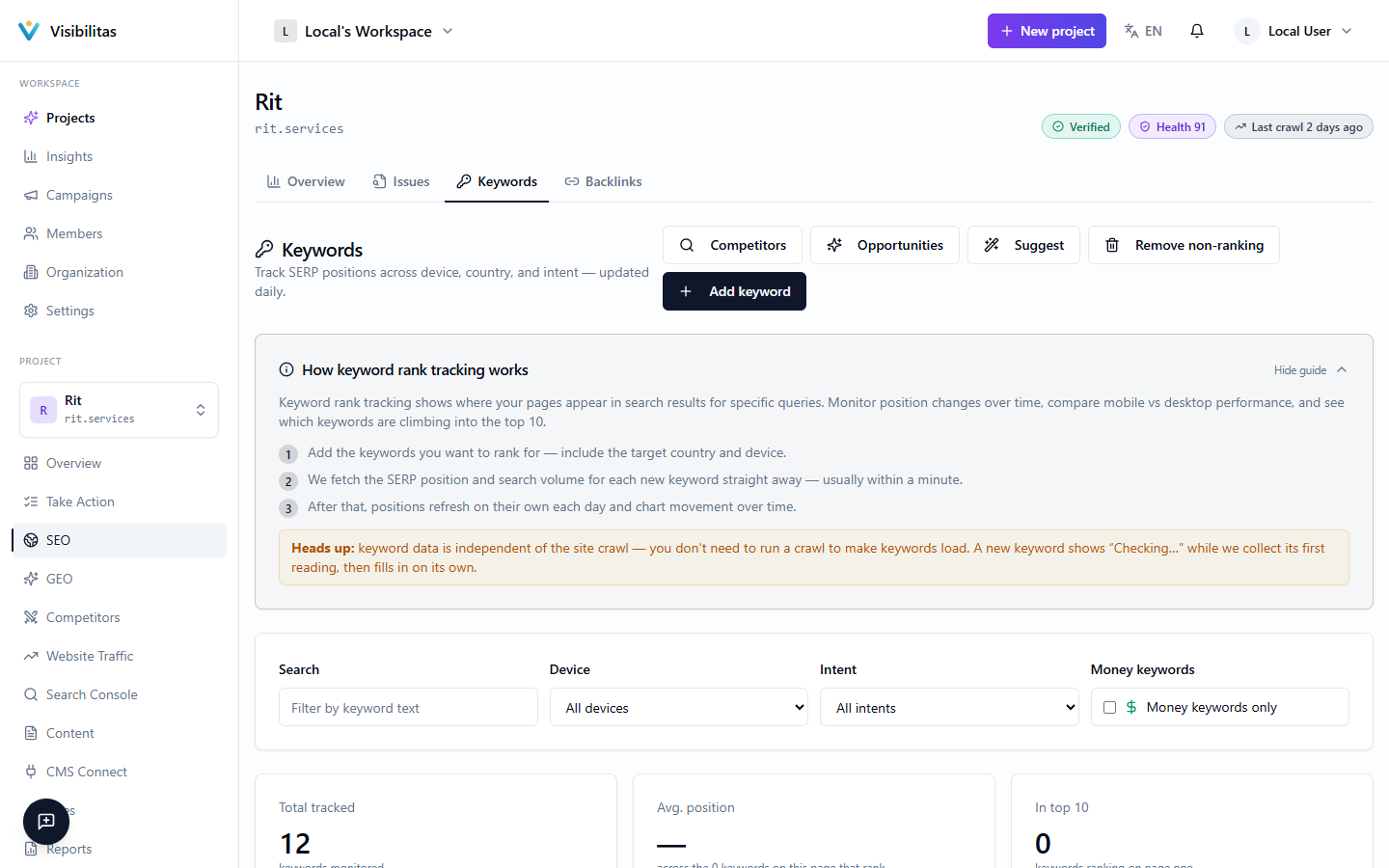
Tracked keywords
The Tracked Keywords list shows every keyword you're monitoring for a project, with its search volume, difficulty score, target market and device, and latest rank. Rank badges are color-coded: green for a top-10 position, amber for 11–30, and muted for anything lower or not found within the tracked results depth. If a keyword's ranking page doesn't actually serve the market it's tracked for (for example a German keyword whose top result is an English page), a locale mismatch warning icon appears next to the rank so you can catch it even though the position itself looks fine.
When you add a keyword you choose which market(s) to track it in, the device (desktop or mobile), an optional intent, tags, and whether to mark it as a money keyword. Projects tracking a global market sample across each of that market's underlying countries, so one keyword can create several tracked rows. Right after adding a keyword, a collecting banner shows while the first rank check and metrics lookup run in the background; the row fills in automatically once that finishes.
A Suggest keywords tool generates candidate keywords from search autocomplete, "People Also Ask" questions, and Claude, seeded from a term you enter; you can select any number of the results and add them in bulk. From the table itself you can force an immediate refresh of a single keyword, toggle its money-keyword flag, or remove it. A bulk remove action clears out every keyword that isn't ranking in the top 100 (including ones never checked yet), which is useful for reclaiming tracking capacity. The list can be filtered by market, search text, device, intent, and money keywords, and sorted by any column.
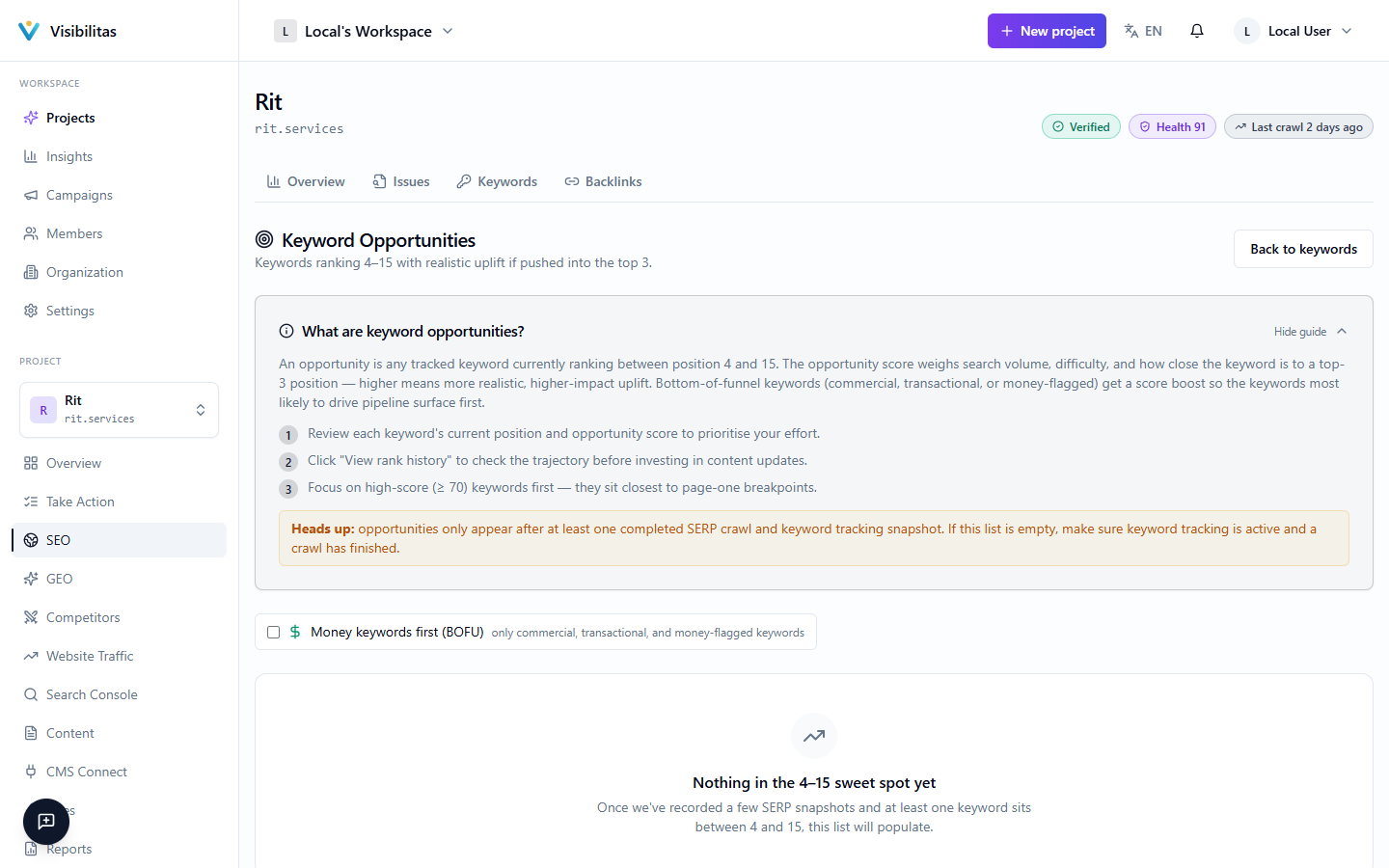
Keyword opportunities
Keyword Opportunities shows every tracked search ranking at #4 to #15, close enough to the top 3 that improving the page that ranks can realistically move it up. They are drawn as a chart: further right is closer to the top 3 (the green band on the right is the goal), and higher is searched more often (on a log scale, so 100, 1,000 and 10,000 sit evenly apart). A bubble’s shade says how hard the search is to rank for (easy up to difficulty 30, medium up to 45, hard above that, dashed when difficulty was not measured), its size what a click costs in ads, and a ring marks a buyer search (commercial or transactional intent, or marked as a money keyword). Searches with no volume reported sit in a band along the bottom rather than at zero. Up to five of the searches most worth a push are named on the chart, where there is room.
Pick a bubble, or a search in the list below the chart, and the panel beside the chart shows it: its position and how many places it is from the top 3, its monthly searches, difficulty, cost per click and the page that ranks. Buyer searches only narrows the chart and the list to buyer searches.
From the panel, Write a refresh brief asks the AI for a short brief aimed at pushing that page into the top 3: a summary plus a handful of concrete actions, each tagged with an impact (high, medium or low) and a category (content, structure, technical or authority). It uses your AI allowance; each brief is written once per search and kept while the page is open. Rank history opens the search’s own trend page.
The list under the chart has every search, the most worth a push first: the order weighs monthly searches, how close the search already is and how easy it looks, with buyer searches a little ahead. The chart draws up to 80 searches; the list holds the rest too.
Rank history & trend charts
Clicking through from either the Tracked Keywords list or the Opportunities table opens a keyword's own trend page, which plots its ranking position over time. You can switch the date range between the last 30 days, 90 days, or 12 months, and toggle whether the chart overlays competitor lines for domains you're tracking against, and whether it marks known search algorithm updates as vertical reference lines on the timeline.
The chart's vertical axis is the rank position itself: lower on the chart means a better ranking, with gridlines at positions 1, 10, 25, 50, and 100 to orient the trend at a glance. Your own line is drawn alongside any competitor lines you've enabled, so you can see directly whether a drop or rise in your position coincided with a competitor's move or with a known algorithm update.
Below the chart, a latest-snapshot summary states the keyword's current position, how long ago it was last checked, and the specific URL that's ranking. If a keyword hasn't been found within the depth of results the crawler checks, its position is shown as a "+" value rather than a literal number, which reflects the outer edge of what was scanned, not an actual ranking that far down.